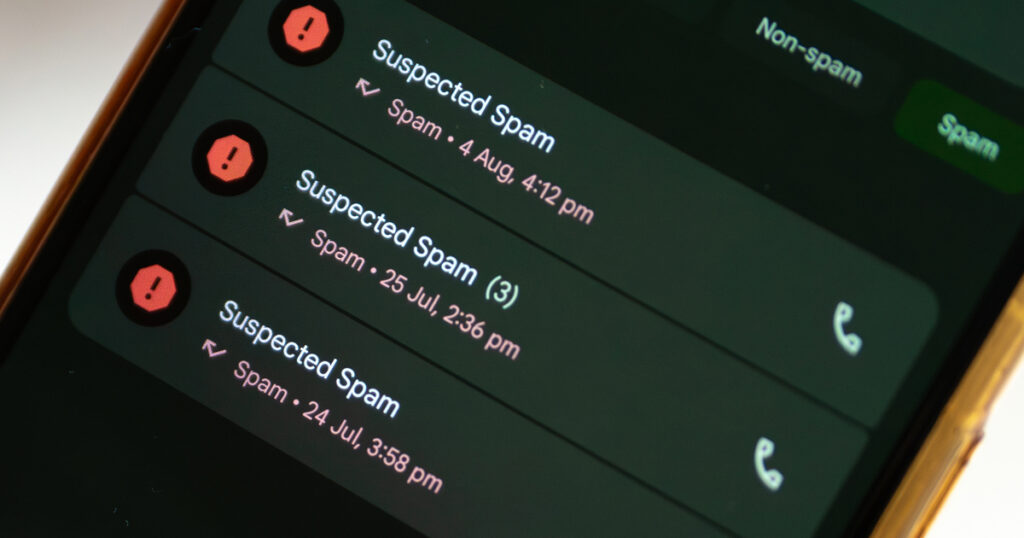
You can block spam calls by updating your smartphone and activating built-in filters, and by screening or reporting suspicious calls or texts. During busy election cycles and certain times of the year, such as tax season or enrollment periods, people can experience an influx of spam calls and robocalls. These calls are more than annoying and disruptive, fraudsters may use them to impersonate trusted organizations, pressure people into sharing personal information, or carry out other scams.
The National Do Not Call Registry does not apply to political calls or texts, and it does not stop scammers. That’s why it helps for people to understand where to find free spam call-blocker tools and how to activate them on an iPhone or Android device.
The Best Free Spam Call Blocker Might Already Be on Your Phone
Newer iPhone and Android smartphones now include some of the most effective, free built-in tools for blocking spam calls. If these aren’t already in use, a user can easily activate the tools in the device settings.
- iPhone: Call screening allows users to identify, screen, and silence unknown callers. Live Voicemail provides a transcript of the message in real time so users may answer or reject the call.
- Android: Caller ID and Spam Protection features provide warnings about potential spam callers and detect fake callers.
- Samsung Galaxy: Smart Call, powered by a third-party service, operates independently of the Android spam filter to identify unknown numbers and filter out unwanted or spam calls.
- Third-Party Apps: Smartphone users can download spam blocker apps to filter out unwanted robocalls, telemarketers, and political communications. These use global databases to identify potential scammers.
| Option | Best for | What to turn on or do | What users should know |
| iPhone built-in call screening | iPhone users who want fewer unknown calls interrupting them | Settings > Apps > Phone > Screen Unknown Callers | “Ask Reason for Calling” screens unknown callers before the phone rings; “Silence” sends them to voicemail. |
| iPhone spam and unknown caller filtering | iPhone users who want to filter unknown or spam calls from their main call log. | Settings > Apps > Phone > Call Filtering > Unknown Callers and Spam | Spam filtering may depend on carrier identification. Check Unknown Callers or Spam lists if expecting a call. |
| Android Caller ID & spam protection | Android users who want caller information before answering | Phone app > More options > Settings > Caller ID & spam > See caller ID & spam; turn on Filter spam calls if available | These features are typically on by default; it identifies callers by data sent to Google |
| Android Call Screening | Android users who may be expecting calls from unknown numbers | Phone app > More > Settings > Spam and Call Screen >Tap Call Screen, and select the protection level | Your Call Assist screens the call and asks who’s calling and why; users may answer based on the response |
| Samsung Smart Call | Samsung Galaxy users who want spam protection | Phone app > More options > Settings > Caller ID and spam protection | Smart Call may not be available on every carrier or model. |
| Blocking individual numbers | Repeat calls from the same number | Use the Phone app call history or contact card to block/report spam | Helpful for repeat offenders, but scammers often change numbers. |
| Third-party spam call blocker app | Users who still receive heavy spam after built-in blocking | Install only from the official app store, and review permissions first | Optional. Built-in free tools should be the first step for most users. |
| National Do Not Call Registry | Users who want to reduce legitimate telemarketing calls | Register the number through the official registry | It does not stop all calls and does not apply to political calls, charities, nonprofits, surveys, or scammers. |
Before You Turn On Spam Blocking
Use these tips to get the most out of spam protection.
Update Smartphone Software
Outdated software can cause spam filters to miss emerging scam numbers or incorrectly flag legitimate calls. Keeping your device updated ensures it checks calls against the latest carrier databases to identify spam numbers and uses the latest security patches and screening tools. Here’s how to update your device:
- iPhone: Go to Settings > General > Software Update. Install the latest iOS version available for that device.
- Android: Go to Settings > System > Software update, or follow the device’s update prompt. Exact wording may vary by phone model.
Add Trusted Numbers to Contacts
Add important numbers to Contacts, such as family, doctors, schools, banks, FTC customer service, local businesses, and anyone whose calls should always ring through. Periodically check your spam or blocked call log to ensure that legitimate calls from doctors, delivery drivers, or local businesses haven’t been filtered out. You may need to adjust spam blocking or filters if this is the case.
Third-Party App Considerations
Before entrusting your spam blocking to third-party apps, consider the cost and privacy policies. Some of these require a paid subscription to activate robust protections, and they might require broad access to your contacts, call logs, and SMS messages. If the number of spam calls your phone’s free spam blocker is allowing through concerns you, try adjusting the settings and features to fine-tune the performance. Even though built-in filters are free, they are considered some of the best spam call blockers available.
How to Block Spam Calls on iPhone
You can choose from several call blocking options for iPhone, including Caller ID, call screening, and filtering, and these may be combined for personalized spam protection. Here’s how to turn spam-blocking features on for iPhone:
- Turn on call identification
- Go to Settings > Apps > Phone > Call Blocking & Identification.
- Turn on available caller ID options, such as Business Call Identification or supported call identification apps.
- These tools can help identify businesses, potential spam, or other callers before you answer.
- Screen or silence unknown callers
- Go to Settings > Apps > Phone > Screen Unknown Callers.
- Choose how to manage calls from unsaved numbers:
- Ask Reason for Calling: Unknown callers are screened before the phone rings.
- Silence: Unknown callers are sent to voicemail and appear in the call list.
- Never: Unknown callers ring normally.
- Filter unknown and spam calls
- Go to Settings > Apps > Phone > Call Filtering.
- Turn on Unknown Callers and Spam if those options are available.
- When spam filtering is enabled, calls identified by your carrier as spam may be silenced, sent to voicemail, and moved to the Spam list.
- Block repeated spam callers or unwanted numbers
- Go to Recents or open the caller’s contact card in the Phone app.
- Tap the caller and choose Block Contact to prevent the number from calling, messaging, or FaceTiming you.
- You can also reverse callers misidentified as Spam by reviewing those logs. Add the number to your Contacts to correct this for future calls.
How to Block Spam Calls on Android
Android settings can vary depending on your phone brand, carrier, and Android version. The steps below cover spam blocking via the Phone app and a third-party feature on the Samsung Galaxy.
- Turn on Caller ID & spam protection in Phone by Google
- In the Phone app: More > Settings > Caller ID & spam.
- Turn on See caller ID & spam.
- If available, turn on Filter spam calls.
- This can help identify suspected spam calls and, when filtering is available, prevent some spam calls from ringing normally.
- Block or report a spam number
- In the Phone app: More > Call history.
- Tap the spam number.
- Choose Block / report spam.
- This blocks that number and may also help improve spam detection.
- Block private or unidentified numbers
- In the Phone app: More > Settings > Blocked numbers.
- Turn on Unknown.
- This blocks calls from private or unidentified numbers. However, it may not block every number that is simply missing from your Contacts.
- For Samsung Galaxy phones
- In the Phone app: More > Settings > Caller ID and spam protection.
- Turn on Caller ID and spam protection.
- If available, use Block spam and scam calls.
Samsung’s Smart Call and spam protection features may not be available on all models, carriers, or regions. Review voicemail, call history, and blocked or filtered lists so you do not miss legitimate calls.
Should You Download an App to Block Spam Calls
A third-party spam blocker app can be useful, but it should not be the first step for most people. For many, the best free spam call blocker is the one already built into the iPhone or Android.
Users Who May Need a Third-Party Spam Blocker
Smartphone users with specific needs choose a third-party app for advanced functionality, such as:
- You frequently receive sophisticated robocalls with spoofed numbers and want more detailed identification
- You need real-time AI voice detection to identify deepfakes and bots
- You want to block entire prefixes, country codes, or number ranges
- You receive an overload of promotional, political, or fraudulent SMS messages along with spam calls
- Custom schedule rules for spam blocking and filtering appeal to you
- An older phone that needs to be upgraded won’t support system-level updates for spam filtering
Before Installing a Call-Filtering or Blocking App
Use these tips to help protect yourself from downloading a fraudulent app and ensure your subscription will perform as you expect:
- Read recent reviews – See what people are saying in the app store and other trusted sources to see if the performance seems worth the cost.
- Check the permissions requested – Verify that the app isn’t requesting access to areas of the device that seem unrelated to blocking calls.
- Use official app store links – Avoid clicking through ads, texts, emails, or pop-ups.
- Avoid assuming paid means better – Many apps only replicate what is already available on your device for free.
- Keep the app updated – Just like the free program on your device, an app still depends on current databases and filtering rules.
What Spam Blockers Can and Can’t Stop
Spam filters excel at recognizing predictable, high-volume patterns across email, phone, and text messages, but they cannot stop every unwanted call or message. Here is what you can expect from a spam call blocker on your iPhone or Android.
- Spam blockers can reduce interruptions – They may identify, label, silence, filter, or block unknown or suspicious calls before they reach your main call screen.
- Spam blockers cannot catch every unwanted call – Robocalls, spoofed numbers, political calls, and scam attempts may still get through, especially during high-volume cycles.
- Blocking one number may not solve it – Scammers may rotate through thousands of spoofed numbers, so blocking just one won’t stop the calls or texts, but reporting the number as spam can help technology identify patterns faster.
- The National Do Not Call Registry can help – Adding your number to the list can reduce telemarketing calls and legitimate sales calls from companies that follow the law, but it does not apply to political calls or companies you have recently done business with.
- The Do Not Call Registry does not block scammers – Scammers often do not care whether a number is on the Registry, which makes call blocking and caller ID warning important defenses.
What to Do When Spam Calls or Texts Still Get Through
Even with spam-blocking tools turned on, some unwanted calls and texts may still reach you. When you’ve identified a call or message as spam, keep these precautions in mind:
- Hang up instead of engaging – If a call sounds suspicious, do not argue with the caller, answer questions, or follow prompts. Hang up.
- Do not press buttons during a suspicious robocall – Pressing a number to “opt out” may confirm that your number is active and lead to more calls.
- Block or report the number – Use your Phone app to block the caller or report the number as spam if the option is available.
- Do not interact with suspicious texts – Avoid clicking links, downloading attachments, calling numbers in the message, or replying with personal information.
- Forward spam texts to 7726 – Most mobile carriers let users forward suspicious or unwanted texts to 7726, which spells SPAM.
- Report scams or fraud attempts – If a call or text appears to be part of a scam, report it through the appropriate official channel or through the call log features on your iPhone or Android device.
Quick Checklist to Keep Spam Calls Down
Use these quick tips to reduce unwanted calls and avoid missing important ones:
- Update your iPhone or Android phone software.
- Save important numbers to your Contacts.
- Turn on built-in spam and caller ID protection, and adjust settings to your preferences.
- Silence, screen, or filter unknown callers.
- Block repeated spam numbers.
- Review third-party call blocker apps carefully before subscribing.
- Let suspicious calls go to voicemail or automate call screening.
- Report scam calls and spam texts when possible.
Frequently Asked Questions
Will blocking spam calls also block spam texts?
Not always. Call blocking and text filtering are usually separate settings. Some built-in tools can help filter both calls and texts, but you may need to turn these features on individually.
Can I turn spam blocking off if I miss important calls?
Yes. You can go back into your phone settings and turn off call screening, unknown caller silencing, spam filtering, or other blockers. If you are expecting a call or have missed an important one, consider adding the number to your Contacts so those calls go through, or temporarily loosen your settings to screening rather than blocking.
Why do spam calls sometimes look like local numbers?
Scammers may use caller ID spoofing to make a call look like it is coming from your area code, a local number, or even a trusted organization. Remember that a number that looks local does not mean the call is legitimate. Let unexpected calls go to voicemail, and contact the company, agency, or person directly using a verified phone number if you are unsure.
FTC keeps you connected with fewer unwanted disruptions through our landline service and Call Screening Reject feature, or wireless plans and devices with built-in spam blockers. Find out if you’re eligible for a phone upgrade or browse the latest devices for peace of mind on any phone line.